Threads has a lot of good content. Short clips, tutorials, funny moments, things you want to come back to. The problem is that the app gives you exactly two options for saving something you like: bookmark it or share the link. Neither of those actually puts the video on your phone.
Bookmarks are just pointers — if the post gets deleted, the bookmark leads nowhere. And sharing a link doesn’t help when you want to watch something offline or send it to someone who doesn’t use Threads.
Saving the actual video file is the only way to actually keep it. Here’s how to do it.
Why Threads Doesn’t Have a Download Button
It’s a deliberate product decision, not an oversight. Meta built Threads around in-app engagement — the platform benefits when you watch content inside the app, not when you save it and leave. So unlike TikTok, which has a native save feature, Threads keeps you dependent on a connection and an account to access content you like.
The workaround is browser-based: you take the post link out of the app, run it through a downloader site, and the video comes back to you as a file you can keep.
When Saving a Video to Your Phone Actually Matters
You want to send it to someone who isn’t on Threads. Sharing a link assumes they have the app and an account. Sending an MP4 file through WhatsApp or iMessage works for anyone.
You want to watch it without internet. Commuting, traveling, somewhere with bad signal — if the video is on your phone, you don’t need a connection to watch it.
You found something you don’t want to lose. Creators delete posts. Accounts get deactivated. If you care about the content, saving it now is the only guarantee it’ll still be there tomorrow.
You’re a creator saving reference material. Studying how others edit, pace, or structure their videos is much easier when you have the file locally rather than hunting it down on the platform every time.
How to Save Threads Videos to Your Phone
The fastest method is savethr.com — works in any mobile browser, no app installation needed, no account required.
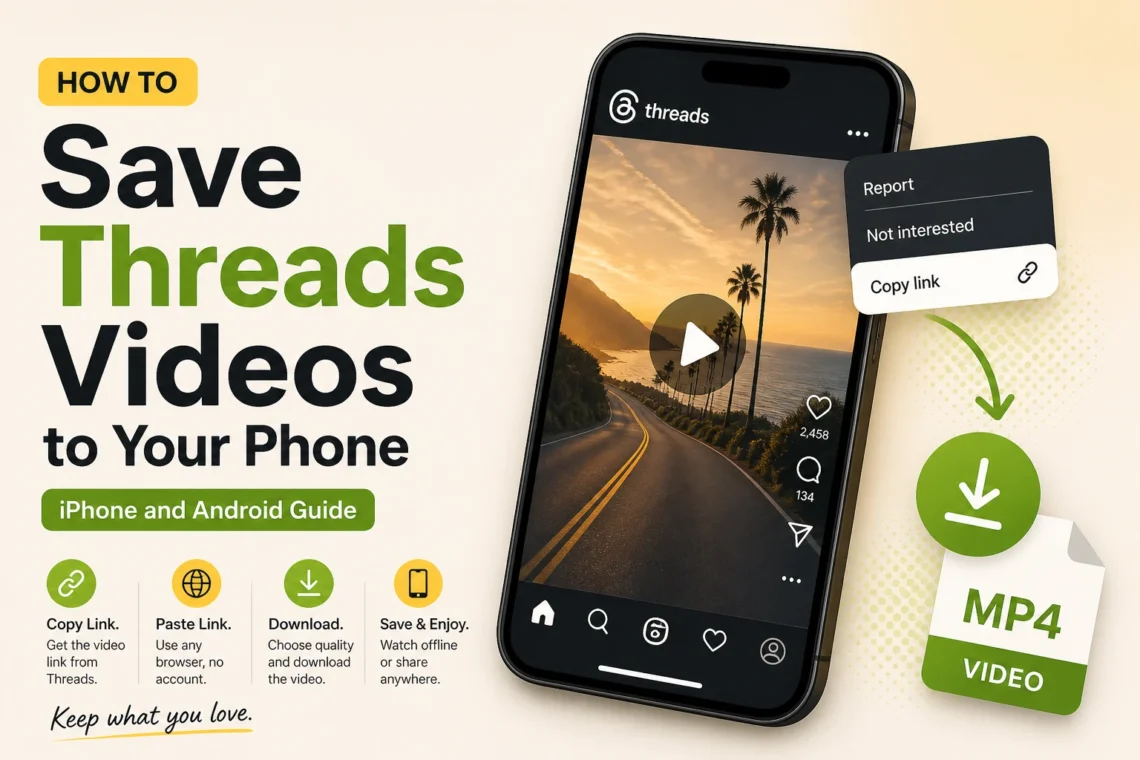
Step 1 — Copy the link from Threads Open the post with the video, tap the three-dot icon, and select Copy link.
Step 2 — Open savethr.com in your browser Switch to Chrome, Safari, or any browser. Go to savethr.com and paste the link into the input field.
Step 3 — Download and save Tap Download, choose your quality, and save. This is where Android and iPhone behave slightly differently — see below.
Where the Video Saves on Android
On Android the file goes straight to your Downloads folder. Most gallery apps — Samsung Gallery, Google Photos, Xiaomi Gallery — scan this folder automatically and the video appears within a few seconds.
If it doesn’t show up in your gallery right away, open your file manager, navigate to Downloads, and tap the file. That usually triggers the gallery to pick it up.
| Android phone | Download location | Appears in gallery? |
| Samsung Galaxy | Internal storage / Downloads | Yes, in seconds |
| Xiaomi / Redmi | Downloads | Yes |
| Google Pixel | Downloads | Yes, in Google Photos |
| Motorola | Downloads | Yes |
| OnePlus | Downloads | Yes |
In Chrome, you can also find recently downloaded files by tapping the three-dot menu and going to Downloads.
Where the Video Saves on iPhone
On iPhone, iOS asks you where to save the file after you tap download. This is the step that trips people up.
- Tap Save Video → goes directly to your Photos app, exactly like a video you recorded yourself
- Tap Save to Files → goes to the Files app (on your iPhone or in iCloud Drive), not to Photos
Most people want it in Photos. If you tapped the wrong option and it ended up in Files, you can move it: open the Files app, find the video in your Downloads folder, tap and hold, and choose Save to Photos.
Comparison: Ways to Save Threads Videos to Your Phone
| Method | File saved locally | Quality | Works on iPhone | No install |
| savethr.com | Yes | Original HD | Yes | Yes |
| Screen recording | Yes | Degraded | Yes | Yes |
| Bookmark in Threads | No | — | Yes | Yes |
| Third-party apps | Yes | Variable | Not always | No |
Screen recording technically works but captures the app interface along with the video — you get the username overlay, the engagement buttons, and whatever notifications pop up during recording. Not clean, not the original file.
One Thing to Know
This only works for videos from public Threads accounts. If the account is set to private, the link won’t process — which makes sense from a privacy standpoint.
The Short Version
Save Threads videos to phone in three steps: copy the post link, open savethr.com in your browser, paste and download. On Android the file goes to your Downloads folder and appears in your gallery automatically. On iPhone, choose Save Video when the prompt appears to send it directly to Photos. No app to install, no account needed, works on any device.